Get started / CalendarWP
Item Purchase Code and license
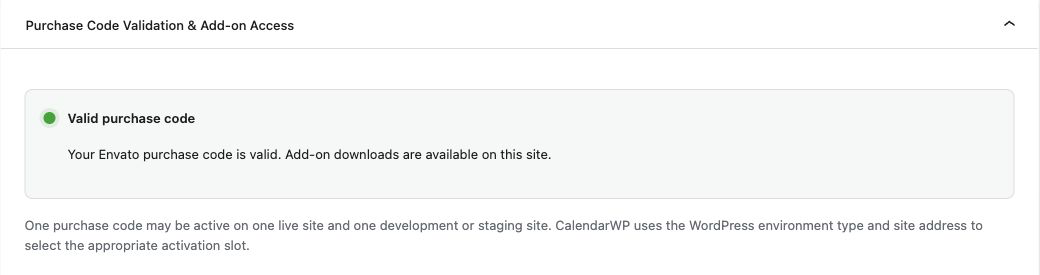 CalendarWP > Options > Purchase Code. This connected test-site example shows valid add-on access. Purchase-code and buyer details are deliberately outside the screenshot. Click to enlarge.
Your CodeCanyon Item Purchase Code identifies your Envato purchase. A verified Item Purchase Code is required to download add-ons through CalendarWP. Activating the WordPress plugin and verifying a purchase code are separate steps: CalendarWP core remains usable without connecting a code.
Each purchase code supports one live site and one development or staging site. CalendarWP automatically detects the activation environment using the WordPress environment type and site address.
Find your purchase code
- Sign in to the Envato Market account used for the purchase.
- Open Downloads from your account menu.
- Find the purchased item and open its Download menu.
- Choose License certificate & purchase code, available as a PDF or text file.
- Copy the value labeled Item Purchase Code. Do not copy the invoice number, receipt number, transaction ID or item ID.
The code has five groups separated by hyphens. Keep it private, just like an account credential. Do not publish the certificate or an unmasked code in screenshots or public support comments.
See Envato's illustrated guide to finding your purchase code. If the item is absent from Downloads, check that you are signed in to the account that made the purchase.
Verify it in CalendarWP
- Sign in to WordPress as an administrator.
- Open CalendarWP > Options > Purchase Code.
- Review Purchase Code Validation & Add-on Access and the explanation of information sent to the licensing service.
- Paste your code into Envato purchase code, without surrounding spaces.
- Select Verify purchase code.
- Confirm the status is Valid purchase code, then select Open Add-ons.
Install the add-ons you need from CalendarWP > Add-ons. Verification provides download access; it does not automatically install, enable or configure every add-on. Provider accounts such as Mapbox, Stripe or an AI service still require their own setup and may have separate charges.
When connected, the Purchase Code screen shows a masked code and, when returned by the service, the buyer, activation environment, support date and last verification time. You do not need to paste the code for every normal recheck.
Understand the status
| Status | Meaning and next step |
|---|---|
| No purchase code | No code is connected. Core remains usable. Verify an eligible purchase when you need licensed downloads. |
| Valid purchase code | Verification succeeded and licensed add-on downloads are available. |
| Temporarily verified | Recent revalidation did not succeed. Download access remains available during a limited grace period. Check connectivity and use Revalidate purchase code. |
| Validation expired | Verification is overdue and its grace period ended. Revalidate, or enter the code again if prompted, to restore download access. This status is not the same as the Support through date. |
| Invalid purchase code | Read the accompanying message, confirm the correct item and code, then retry or contact support. |
The service is rechecked automatically each day while connected. A temporary connection failure is not a reason to buy another license immediately.
Live, development and staging sites
CalendarWP allows one live activation plus one development/staging activation for the same purchase code. You do not need a second purchase code for that accompanying development or staging site.
The license system automatically detects whether the installation is live or development/staging from the WordPress environment type and site address. Review the displayed Activation value after verification; ask your host to check the environment configuration if a staging site is identified as live. A staging hostname alone is not a substitute for correctly configuring the WordPress environment.
This activation allowance does not grant rights to use a purchase for unrelated customer sites or projects. Your purchase certificate and the applicable Envato license terms govern permitted use. For license selection, consult Envato's Regular and Extended License guidance.
Move or disconnect a site
Before retiring a site, open Options > Purchase Code and select Disconnect purchase code while the old site can still reach the licensing service. This requests remote disconnection and removes the local license token; it does not uninstall CalendarWP or delete your events.
After changing the site address or cloning to another domain, CalendarWP clears the copied local connection and requires verification for the new site identity. Verify on the destination and check its activation environment. If the old site is inaccessible or the service still reports an occupied slot, contact support with the old and new site addresses. A local disconnect during a network outage cannot guarantee the remote slot was released.
If verification fails
- Invalid format: copy only the purchase code from the certificate, retaining its hyphens and removing extra spaces.
- Different Envato item: confirm the certificate belongs to the eligible item. A code from another plugin or theme cannot substitute for it.
- Connection or temporary service error: check that the WordPress server can make outbound HTTPS requests to the CalendarWP licensing service. Ask your host to investigate firewall, DNS or certificate errors; do not disable HTTPS verification.
- Activation slot already used: check the old site and the live/staging classification before trying again.
- Still blocked: record the exact error, CalendarWP version, site address and time of the attempt. Use the support guidance. Do not include a complete purchase code in public logs or screenshots.
Envato also provides purchase-code troubleshooting.
What information is sent?
Verification sends the purchase code, site URL, plugin version, WordPress environment type and a random installation ID to the CalendarWP licensing service. The plugin exchanges the raw code for an opaque token and retains that token, a masked code and verification metadata locally, not the raw code. Connected rechecks reuse the token and site details; add-on downloads also identify the add-on.
Disconnecting does not recall previous requests or erase records already held by the service. Read Privacy and data for the full disclosure. You never need to supply an Envato author API token.