
Add-ons / CalendarWP
Community Events
Applies to the CalendarWP Community Events 1.0.3 with CalendarWP 1.0.58-rc137. Complete the acceptance checklist below before enabling live payments.
Community Events lets permitted members submit and manage events from your website without access to wp-admin. It is separate from attendee registration: a submission fee pays for an event listing, not an RSVP or Scheduler ticket.
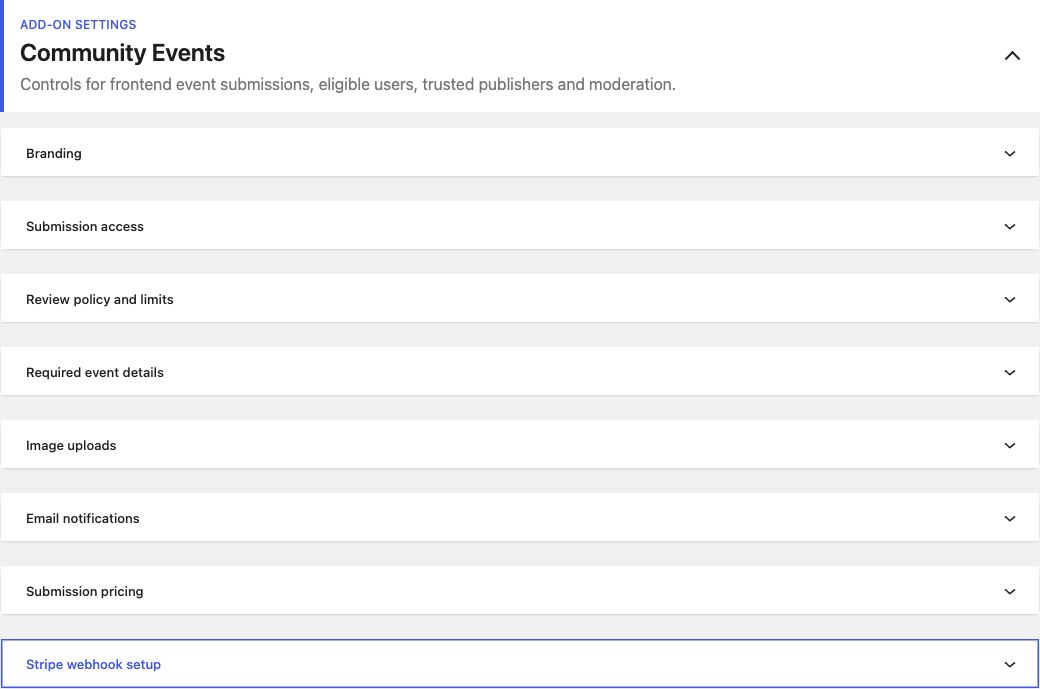 Configure branding, submission access, review policy, required details, image uploads, notifications, pricing and Stripe webhooks from Add-on Settings. Click to enlarge.
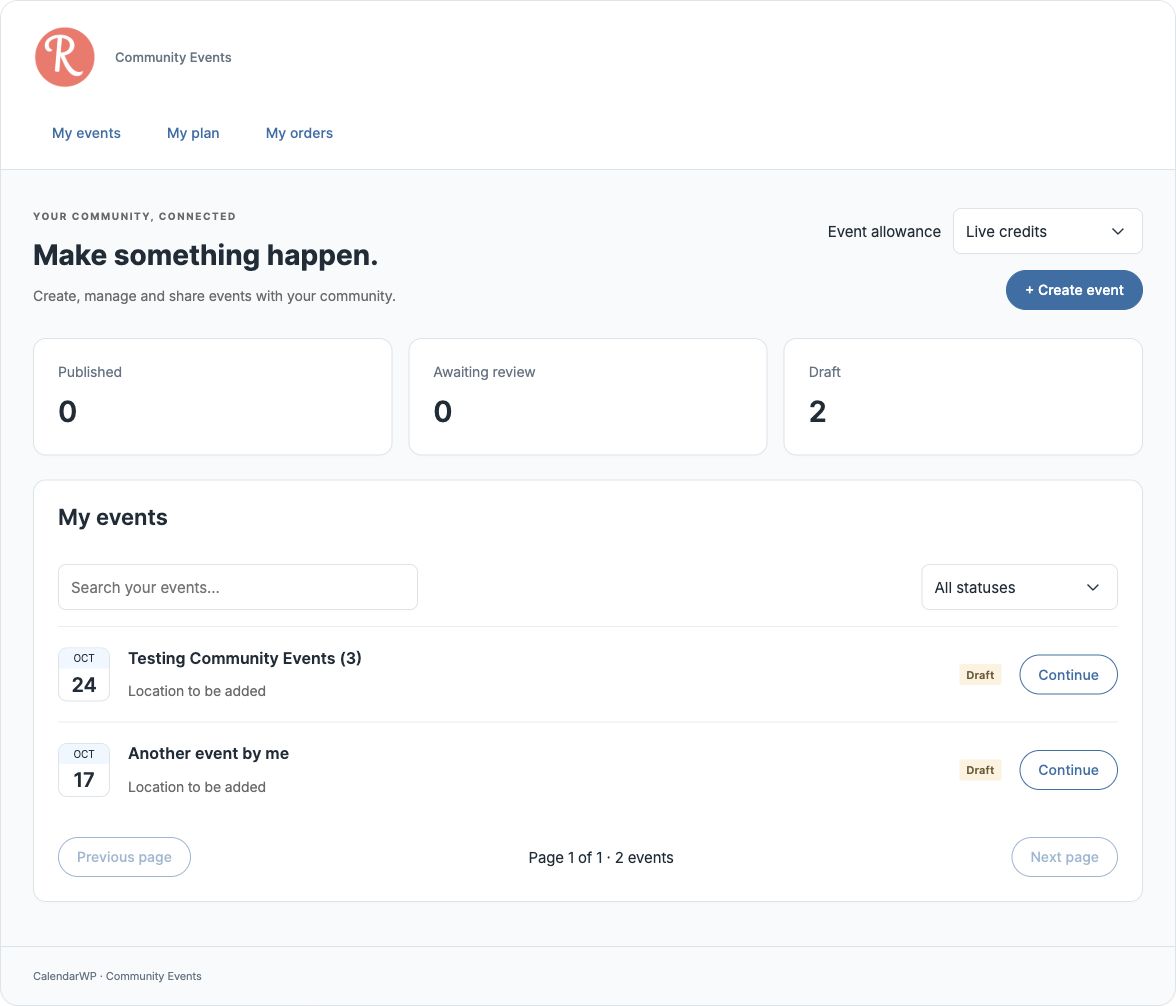 Signed-in local demo showing My events, allowance selection and two sample drafts. The logo and available submission options follow site settings. Native 1176-pixel capture. Click to enlarge.
Set up member submissions
- Install CalendarWP core and the Community Events add-on. Connect a valid Item Purchase Code, then enable Community Events in CalendarWP > Add-ons.
- Select Configure to open Options > Add-on Settings > Community Events. Manage submissions opens the moderation queue instead.
- Under Submission access, select eligible roles or search for additional eligible users by name or email. Select multiple users as needed; there is no need to look up user IDs.
- Under Review policy and limits, search for and select multiple Trusted publishers. Trust does not itself grant submission access. Blocked users cannot submit even if their role or another selection would otherwise allow it.
- Keep Review every submission enabled if all events must be approved, including trusted publishers' events.
- Create a WordPress page and insert CalendarWP - Community Events. Its controls set the dashboard heading, introduction, visibility of event totals and logo override. Alternatively use
[calendarwp_community_events]. - Save the page and test with a separate member account. Logged-out visitors see a sign-in card; its button opens WordPress login and returns them to the page after signing in. An account alone does not grant submission permission.
Under Add-on Settings > Community Events > Branding, use Show logo to control the default visibility and select a custom image from the Media Library. Remove the custom image to restore the CalendarWP wordmark. Each Community Events block can Use global settings, select a Custom logo, or Hide logo. Existing blocks and the shortcode inherit the global settings.
Explicitly blocked members see a red access-denied notice. Members without submission eligibility see a yellow notice. Both screens hide event navigation, dashboard content and plan promotion. Members with existing subscriptions can open Manage existing billing to update their payment method or review cancellation in Stripe; submission access remains denied. No billing cards appear when there is no subscription history.
The access settings do not grant WordPress event-editing or media-library permissions. Administrators have submission access unless blocked. The add-on does not turn on public WordPress registration for you.
Configure the form
Title, dates and time zone are always needed before submission. Select additional required details in Add-on Settings. Members may save incomplete drafts.
Existing calendars, venues and organizers are selectable. Each taxonomy has its own restriction and allowed-items selection. An enabled restriction with no selected items permits no assignments for that taxonomy; consider that when making it required.
Members may propose a missing venue or organizer by name. Proposals always require staff review, even for trusted publishers. Approval resolves the name to an existing matching term or creates it; typing a proposal does not immediately create public taxonomy content.
Cover uploads accept JPEG, PNG and WebP subject to the configured size limit and server safety limits. Your server must provide a WordPress-compatible image editor (GD or Imagick) with WebP support, because the browser uploads the optimized crop as WebP. If a valid image repeatedly fails with “This image could not be processed,” ask your host to check the installed image editor and WebP support. Unpublished covers remain protected rather than receiving an ordinary public media URL. Approval promotes the validated cover to the native event. Turning uploads off preserves existing covers and disables any otherwise impossible cover requirement.
The per-user submission limit counts stored submissions, including drafts and reviewed records. A monthly paid allowance is a separate limit; it does not replace this storage limit.
Submit, review and edit
Members create an event, save a draft, review its details and submit. The available action depends on server-side eligibility, publishing trust, review policy and payment state.
Staff can approve, request changes or reject. Requested changes and rejection require feedback. Approval applies to the exact submitted revision, not to future edits.
An unapproved change to a published event does not replace the last approved public version. Submit the revised details for approval. New recurrence settings and taxonomy assignments take effect only when the new revision is published successfully.
Withdrawal removes the linked event from publication. It does not automatically refund a fee or cancel a subscription. Contact the site administrator about financial changes.
Free submissions and payments
The default submission policy is free. Choose Packages and memberships under Submission pricing to offer free allowances, single-event payments, event packages and monthly memberships together. These options use the shared CalendarWP Stripe connection and do not require Scheduler. Existing one-time fee and monthly subscription configurations remain available.
For one-time fees, choose When to collect payment under Submission pricing:
- After approval: review the submission first. The approved event waits for verified payment before publication.
- Before review, on submission: collect the fee before the submission enters review. Provide review-fee terms explaining what the fee covers and your refund policy if a submission is rejected. The member must accept these terms before checkout. Payment does not guarantee publication.
A trusted publisher still needs to satisfy the payment requirement. Their existing publishing permission takes effect only after payment is verified, unless proposed venues or organizers require staff review. The purchase panel shows the amount, currency, environment and terms before the member confirms and opens Stripe Checkout.
Rejection does not automatically refund a fee. A paid submission can be resubmitted for review without paying again; approval rechecks the existing payment. A refund, financial hold or unverifiable payment prevents this paid publication path. Do not ask the member to pay again to work around a hold. Later approved revisions of the same paid listing reuse its payment rather than creating another charge.
Monthly allowances are granted after independently verified paid invoices. A recurring event series uses one allowance, not one allowance per occurrence. Unused allowances do not roll over. Editing the same listing does not create a new allowance claim merely because it is reviewed again. Expired, held or exhausted allowances cannot fund a new publication.
Payment never grants submission eligibility. Verified paid submissions can bypass ordinary review only when that option is enabled and Review every submission is disabled; other validation and proposal-review safeguards still apply. If payment verification or publication fails, the system must not silently publish for free. A successful return from Stripe is not proof of payment; the member can refresh the recorded order status.
Configure Stripe safely
Save provider credentials in CalendarWP's shared Integrations settings, then configure Community Events submission pricing and its Test/Live environment. Configure the Community Events webhook endpoint with its own signing secret for the selected environment. Do not reuse Scheduler's endpoint signing secret merely because both use the same Stripe account.
Open Options → Integrations → Stripe → Community Events payments webhooks for the endpoint URL, 26 required event types, recommended webhook API version, signing secret and delivery status. Account identity is discovered from the shared Stripe connection; you do not enter an account ID. Choose the matching test or live environment; each has its own endpoint and secret. Switching this selector does not change the submission pricing environment. Pricing and payment policy remain under Add-on Settings → Community Events, with a link to the Stripe integration.
Use 2026-01-28.clover for new webhook endpoints. Existing 2026-09-30.endive endpoints remain supported. The plugin's fresh API requests stay explicitly pinned to Endive; changing the webhook setup does not change your account default. Unsupported payload versions are rejected rather than guessed. These two payload contracts are covered by local synthetic checks; real Stripe delivery and payment acceptance still require testing.
A green saved-secret notice confirms storage, not delivery. Clear saved value asks for confirmation and clears only the selected mode; delivery for that mode will fail until a replacement is saved. Leave a secret field blank to retain its saved value. Local .local sites need Stripe CLI forwarding or a public HTTPS tunnel. Webhooks are required for asynchronous payment confirmation and subscription lifecycle updates. A recent accepted webhook is not proof that every required event is configured or a payment fulfilled; verify the full setup before enabling paid submissions for members.
Offer free and paid choices together
Under Options > Add-on Settings > Community Events, enable Packages and memberships in Submission pricing. Configure these choices independently:
- Free events per member: a one-time quota. Enter 0 to disable the free option. Withdrawal and resubmission do not reset used free events. Changing the limit applies to existing eligible members: increasing it from 1 to 5 leaves 4 remaining for a member who already used 1. Lowering it can reduce the remaining balance to zero; it does not unpublish existing events.
- Single event: a one-time purchase for a selected existing event or recurring series. Its credit cannot fund another event.
- Event package: choose the event count, price and validity in days. Duration starts from verified payment; 0 means no expiry.
- Monthly membership: choose the price and events per monthly billing period. Unused credits expire at the end of their period.
Changing a published offer
Changes to a paid offer apply to new purchases. Existing packages and monthly memberships retain the price, event allowance and included features captured at purchase. For example, changing a monthly offer from USD 19.99 to USD 22.99 does not increase an existing member’s next renewal charge. Changing its allowance from 25 to 30 also does not increase that member’s monthly credits.
The offer editor does not migrate existing subscriptions to a new plan. Do not manually change their Stripe price as a workaround: Community Events verifies renewals against the purchased price and can stop granting new credits if they no longer match. Arrange a separately supported subscription change before altering existing billing terms.
Monthly credits remain limited to their billing period; unused credits do not roll over. The free allowance behaves differently: changing its limit applies to existing eligible members while preserving their used-event count.
Publish each paid offer to make it available. Draft and archived offers do not appear in My Plan. Admin offer cards explain missing payment setup or hidden test offers. Archiving prevents new purchases and preserves already-purchased credits.
In the offer editor, use Included features to choose Event Cover Image, Event Card Image, Event Gallery and recurring events for that offer. Each offer has its own settings; for example, a free offer can exclude Gallery while a paid package includes it. Site-wide upload settings still apply. Existing purchases retain their included features when an offer is edited.
In My Plan, members see remaining and used credits, active memberships, purchased package names and expiry dates. They can compare available offers, buy an option, or choose Use these credits for an owned allowance. The event form lets them select their free allowance or a purchased allowance. An event already funded keeps its original selection; edits do not spend another credit.
Test packages and memberships
Offers use live payments by default. Enable Force Test Payments on an individual offer to use Stripe test payments for that offer. Configure the matching test credentials and Community Events test webhook before testing.
On a site whose default payment mode is Live, enable Show test offers in My Plan to display published test packages and memberships alongside live offers. The member-facing offer is marked Test and its checkout uses the test environment. Turn the visibility setting off when finished: test offers disappear and new checkout attempts are rejected, while existing purchase records and credits are retained. Published test offers remain visible when the entire site uses test payments.
Test payments support the full submission, approval and publication flow, including on production WordPress sites. Normal eligibility, validation and review rules still apply. Test and live balances stay separate. Changing an offer's test setting does not convert existing purchases between environments.
Automatic tax calculation is not enabled by this add-on. Do not assume a displayed price includes a configured tax collection workflow. Review your pricing and tax requirements before accepting live payments.
Receipts, invoices and My orders
After verified fulfillment, the thank-you page shows the purchased package and available Stripe document links. My orders provides access to billing and purchase records. Receipt, hosted invoice and invoice PDF links appear only when Stripe supplies them for that order.
New one-time checkouts request a paid invoice from Stripe; subscriptions generate invoices through subscription billing. Completed older purchases and already-created checkout requests are not retroactively converted. Invoice generation can finish after payment confirmation. Stripe prices one-time post-payment invoice creation separately; see Stripe receipts and paid invoices.
Billing buttons use the signed-in member's linked Stripe customer in the selected live or test environment. Legacy purchases without a linked customer may use the configured portal login page, which still requires Stripe email verification.
Stripe is an optional external service. Creating a linked customer sends the member's email and WordPress user ID to Stripe. Checkout and billing requests send customer/order references, offer price and payment terms, currency, return URLs, and payment or subscription identifiers. Card details are entered on Stripe's hosted checkout. See Stripe's privacy information and terms. Disabling the shared Stripe connection prevents new Community Events API requests through that connection; it does not cancel existing subscriptions or erase records held by Stripe. Arrange subscription cancellation separately before retiring paid offers.
Billing management and recovery
Members can view their own plan and billing records. Where available, the billing-management actions open Stripe's hosted payment-method or cancellation flow. Submission eligibility and billing access are separate; revoking submission eligibility does not automatically cancel billing. Disabling the add-on currently also blocks its member billing interface.
Staff payment recovery rechecks an existing order; it does not create another charge. Subscription recovery checks the linked subscription and newest paid invoice. It is not a complete historical accounting import and does not replace webhooks.
Financial holds require review. A refreshed payment method or a repeated success delivery does not clear a hold. Subscription allowance hold release requires an explicit staff confirmation and fresh provider evidence; it does not restore consumed credits or publish an event. One-time held payments have no automatic release or refund action. Review the recorded reason and provider records before deciding what to do.
If a payment appears missing, check the correct environment and account, order identity, webhook configuration and delivery history before using recovery. Never ask a member to pay again solely because a browser redirect failed.
Notifications
Member and moderator email notifications start disabled. Enable them deliberately in Add-on Settings and select moderation recipients by name or email. Only selected users with permission to manage site options receive moderation alerts.
Delivery uses WordPress scheduled tasks and the site's mail service. An accepted handoff does not prove arrival in the recipient's inbox. Failed handoffs retry up to five times; uncertain handoffs are not automatically resent. Staff recovery can queue one retry, with acknowledgement where a prior handoff may already have delivered the message.
Data, privacy and removal
Deactivation preserves stored records and stops notification processing. Deleting an individual add-on also preserves its records, regardless of any legacy deletion preference. Manage lifecycle policy centrally in Options → Advanced → Data retention and uninstall. Deleting CalendarWP preserves data unless both the removal switch and the new ecosystem confirmation are enabled. Confirmed cleanup removes core and add-on settings, private submissions and covers, booking and payment records, and owned tables. Public events and their taxonomy terms have a separate removal choice; public media files remain. Export records and back up first. This does not cancel Stripe subscriptions or refund payments. Per-add-on privacy information and anonymization controls appear in Advanced only while that add-on is enabled; hiding them does not reset saved periods.
An inactive or removed add-on cannot process its incoming webhooks. Removing it does not cancel Stripe subscriptions or issue refunds; arrange those separately before retiring the service.
WordPress personal-data tools export the requesting member's submission, billing, notification and explicit access-policy references. Erasure removes eligible private, unlinked submissions and notification history. Published, payment-linked and related-content records are retained for administrator review. Access-policy references are also reported as retained so erasure does not silently lift a block or change publishing trust. Previously delivered email cannot be recalled.
These controls do not erase unrelated WordPress or Stripe data. Review retained records and your site's privacy policy with the appropriate adviser.
Before opening submissions to members
- Test logged-out, eligible, trusted and blocked accounts.
- Test approval, requested changes, rejection, withdrawal and edits to an already published event.
- Check mobile layout, recurrence, time zones and protected cover images.
- Test payment success, failure, delayed confirmation and subscription renewal in a sandbox; verify required webhooks and billing-management actions.
- Verify notification delivery through the mail service you will actually use.
- Back up the site and retain the matching installer and add-on manifest from the same build. Never mix a rebuilt ZIP with an older integrity manifest.
See CalendarWP core, Item Purchase Code and license and Support for shared installation and troubleshooting guidance.
Image positioning
Save a draft in place, then choose or drop an image. Covers use a 1440 × 600 viewport; gallery images use 1680 × 1200. Use Cover or Fit inside, drag or position sliders, and zoom before choosing Crop & save. Only the optimized WebP is uploaded; the original stays on your device. Fit inside leaves transparent padding. Source images may be up to 2 MB and 40 megapixels. Card images use the same crop-and-save flow at 855 × 555.