
Add-ons / CalendarWP
Scheduler
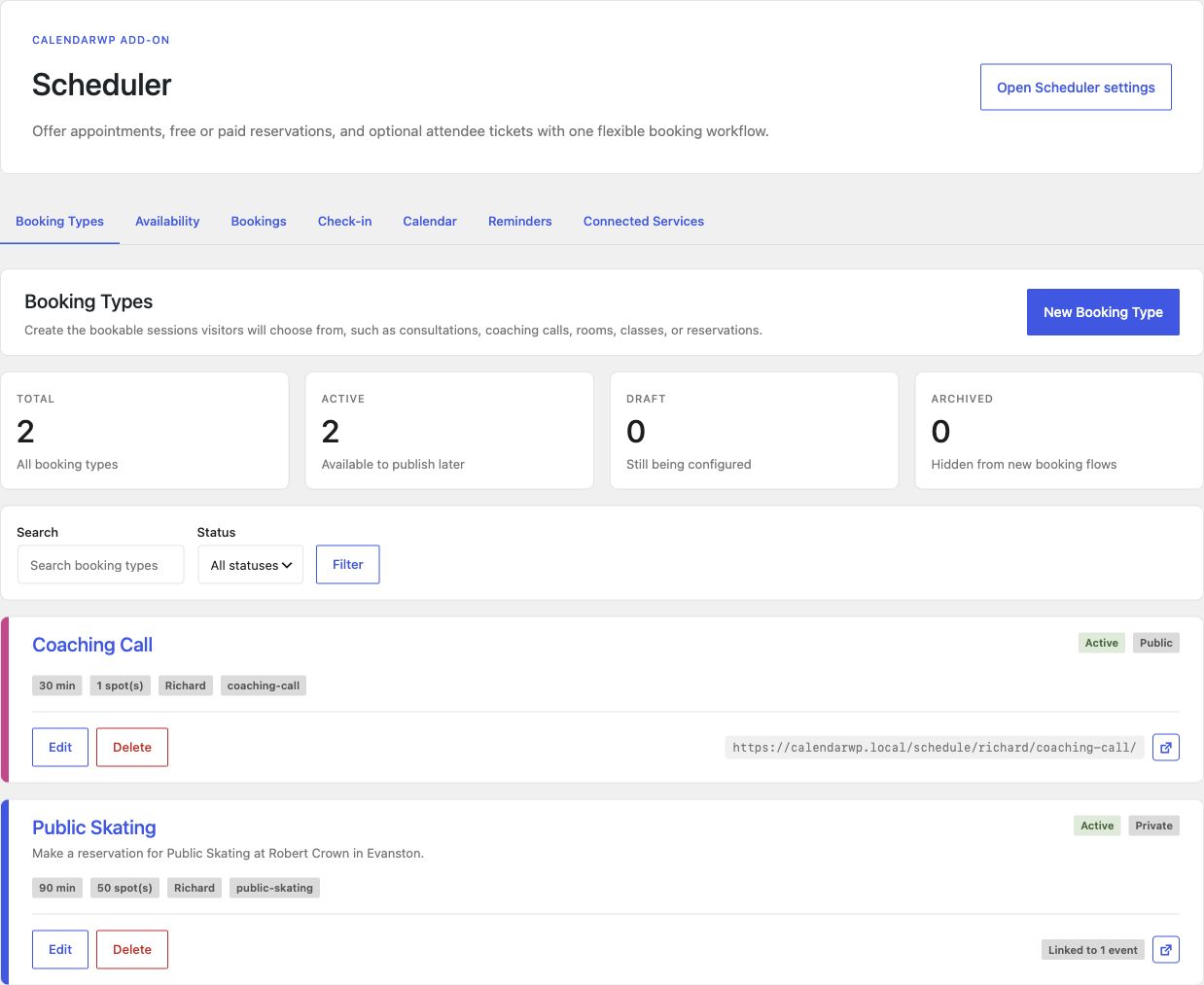 CalendarWP > Scheduler > Booking Types. Create a service, then configure its availability. The two services shown are existing test-site examples, not bookings. Click to enlarge.
Publish bookable appointments, meetings, classes or reservations with availability, capacity and optional payment and connected-service features.
Create a booking type
- Install core and activate CalendarWP - Scheduler.
- Create a booking type. Review its duration, capacity, host, availability and location.
- Publish it directly or connect it to a CalendarWP event.
- Make a free test booking first. Check its date, timezone, status and customer-facing details.
- Enable reminders and external services only when needed, then test those configured workflows separately.
Set the timezone deliberately and verify a date around a daylight-saving change when relevant. A published event or available calendar date alone does not establish a bookable slot; availability is checked by the booking workflow.
Set host availability
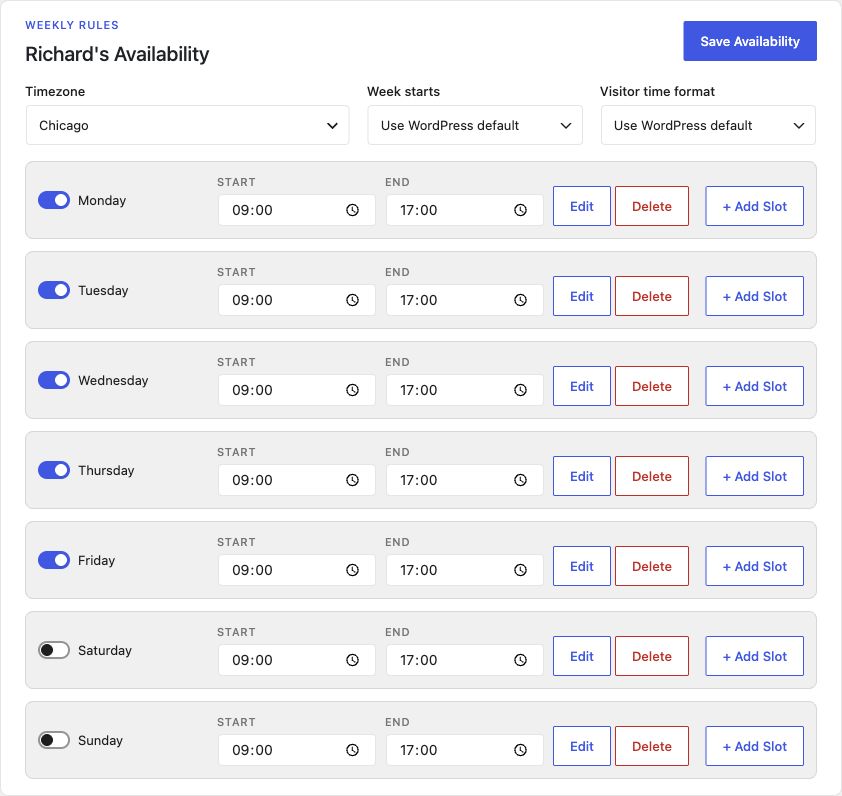 CalendarWP > Scheduler > Availability. Select a host to manage their weekly schedule and exceptions. This screenshot uses demonstration settings; your hosts, dates and hours will differ. Click to enlarge.
Availability belongs to the host, not just one booking type. Booking types assigned to the same host share that host's schedule. Choose the correct host before changing hours or adding a holiday.
Select a host
Open CalendarWP > Scheduler > Availability, choose Host, then click Load Availability. The list includes administrators, users granted Scheduler access and existing booking-type hosts. Loading a host displays their settings; it does not save changes to weekly hours.
Set weekly working hours
- Choose the host's Timezone before entering hours. Use the location where those working hours apply.
- Choose Week starts and Visitor time format, or keep Use WordPress default. These control presentation, not additional working hours.
- Enable the weekdays on which the host accepts bookings. Disable days off.
- Set each enabled day's Start and End time. Use Add Slot for separate working periods, such as 09:00–12:00 and 13:00–17:00 with a lunch break.
- Review the slots and click Save Availability. Save before switching to another host or leaving the page.
Weekly hours define the recurring schedule. Actual bookable times also depend on the booking type's duration, capacity, booking rules, existing reservations and any enabled conflict checks. Verify the visitor-facing booking page after making changes.
Load holidays
Under Load Holidays, choose a supported country and click Load Holidays. Scheduler imports upcoming holidays from its supported holiday list as all-day blocked dates for the selected host. The import checks the current and following year and skips past dates. Review the import result and the resulting overrides; existing dates are not blindly replaced.
This blocks the host's availability. It is separate from importing holiday events into a CalendarWP calendar through Google Calendar Sync. Review whether the imported holidays match the days your business actually closes, and repeat the import when you need to cover a later year.
Add a date override
Use Add Date Override for an exception to the normal weekly pattern. Select the date, choose the override type and optionally add a note such as “Holiday” or “Extended hours”.
- Blocked / unavailable makes the host unavailable for the whole date.
- Custom hours lets you specify the working hours for that date instead of relying on the regular weekly pattern.
Click Add Override to save the exception. This has its own action, separate from Save Availability. Review saved exceptions under Upcoming Overrides; Edit changes an exception and Delete asks for confirmation before removing it. Removing a blocked-date override can make the date bookable again if the remaining availability rules permit it. It does not delete a holiday event from your calendar.
The public booking process
These screenshots show a demonstration Coaching Call hosted by Richard. Available dates, notification options and fields depend on your settings. The confirmation shows a saved booking; it does not establish that Google Calendar or Google Meet delivery completed.
1. Choose a date
Browse available dates and check the host, duration and timezone.
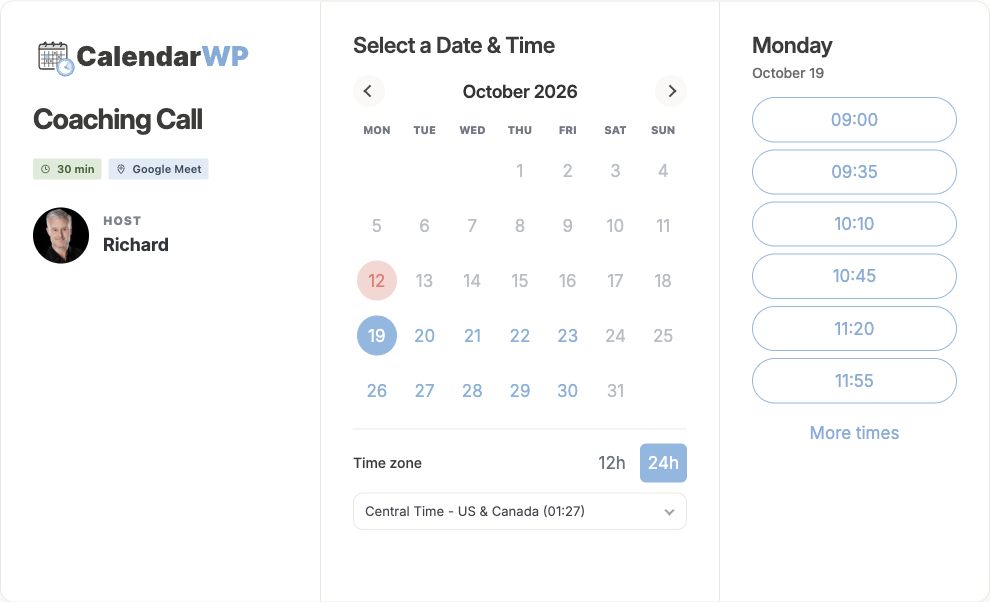 Browse available dates and check the host, duration and timezone. Click to enlarge.
2. Select a time
Choose a time and continue with Next.
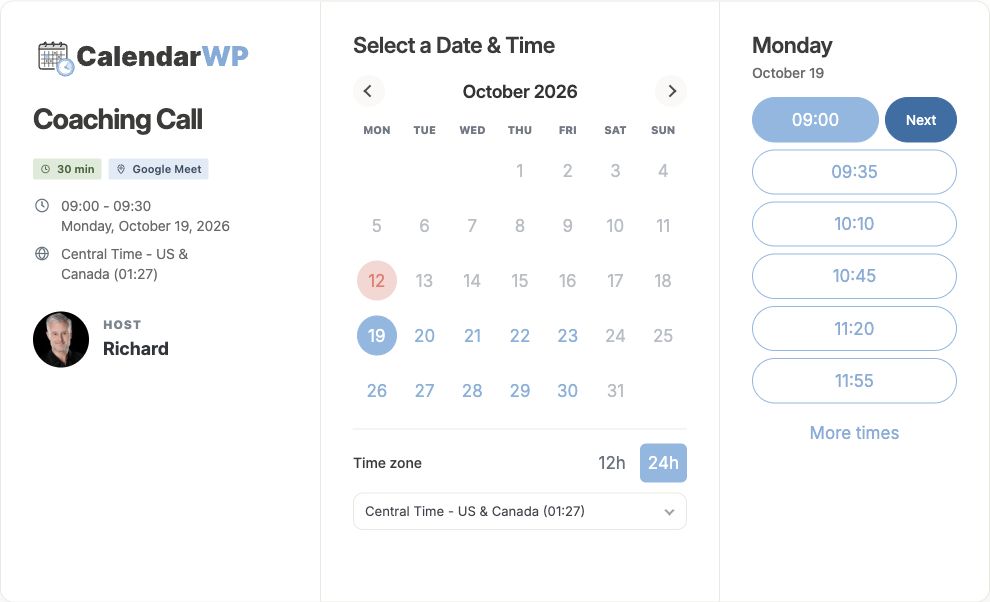 Choose a time and continue with Next. Click to enlarge.
3. Enter your details
Enter the attendee details requested by the booking form.
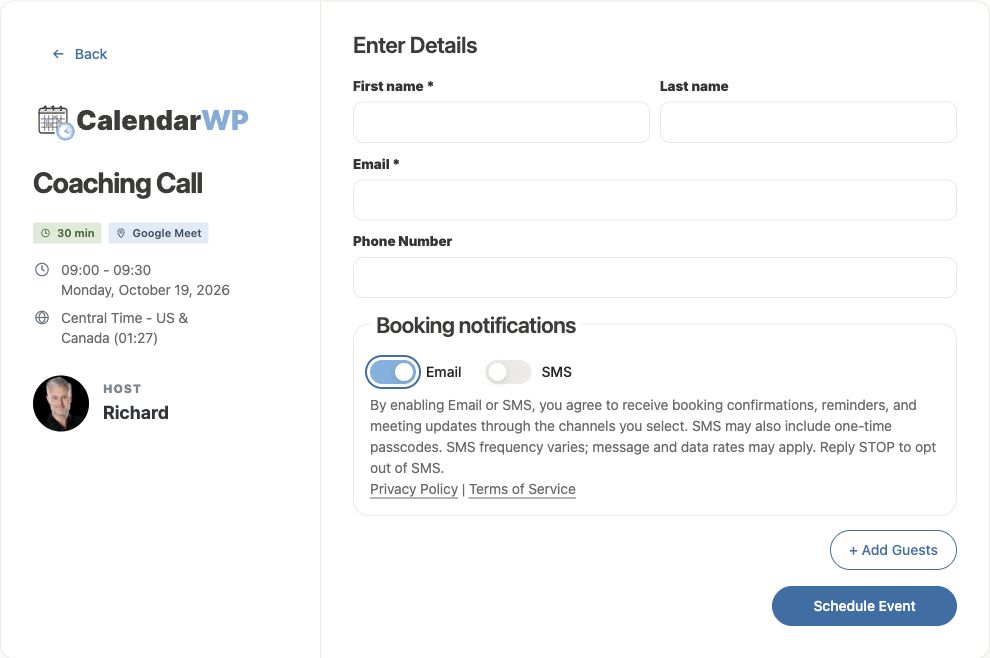 Enter the attendee details requested by the booking form. Click to enlarge.
4. Review your booking
Check your details and choose available notification options before scheduling.
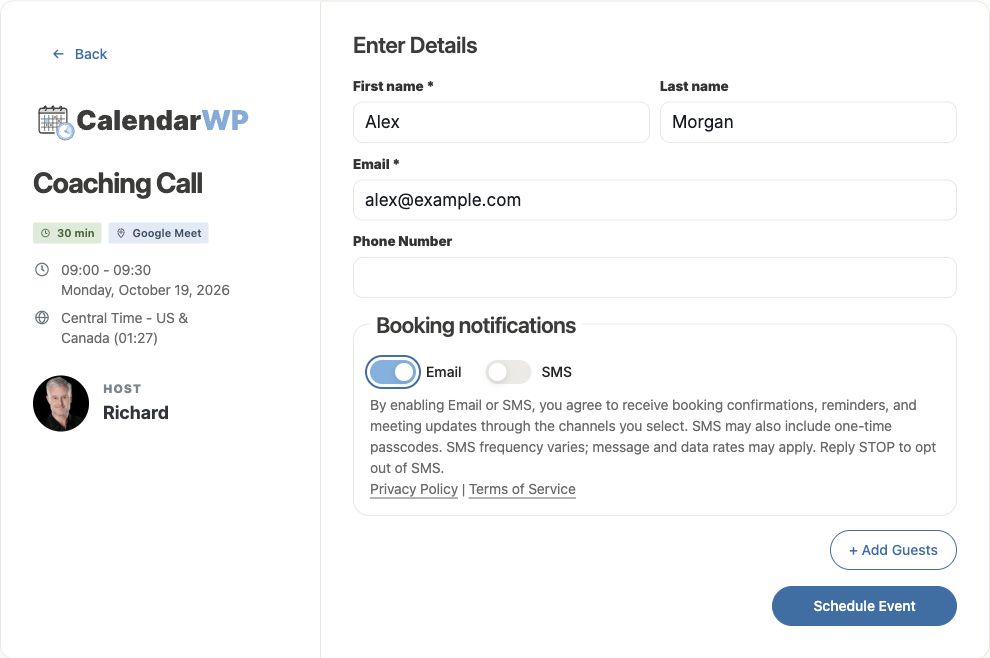 Check your details and choose available notification options before scheduling. Click to enlarge.
5. Booking confirmed
Review the saved booking and available calendar, reschedule and cancellation actions.
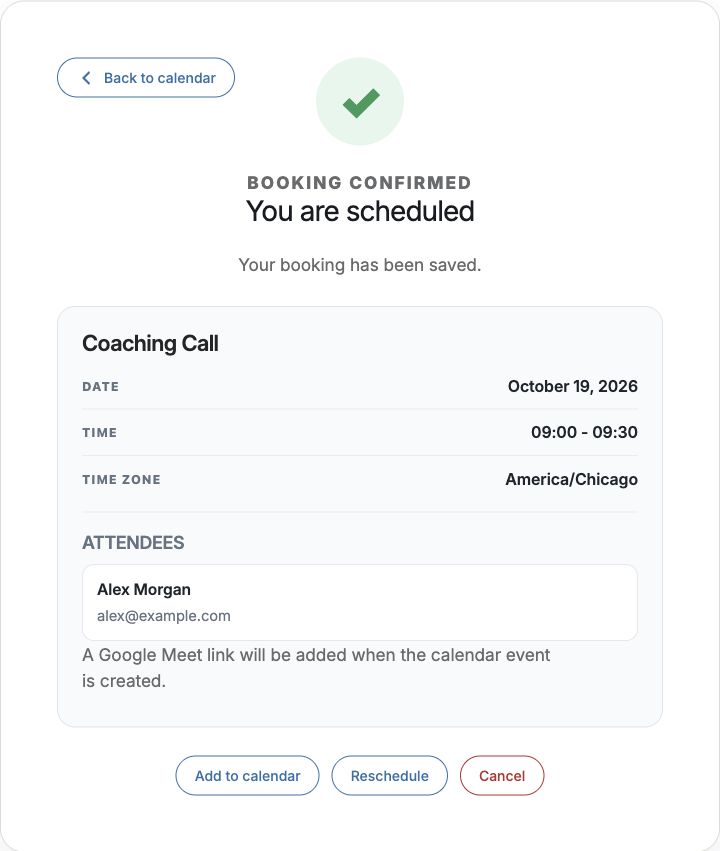 Review the saved booking and available calendar, reschedule and cancellation actions. Click to enlarge.
Payments and shared connections
Provider credentials are managed by an administrator under CalendarWP > Options > Integrations. Scheduler's Connected Services controls how Scheduler uses those shared accounts.
Paid bookings need Stripe credentials and the correct webhook endpoint/signing secret. Use Stripe test mode and test payment details before using live keys. Check the resulting booking and webhook outcome; do not infer a settled payment from the browser redirect alone. Keep secrets and payment references out of public support posts.
Scheduler lists its 13 required webhook event types in the shared Stripe settings. Configure a separate destination in each Stripe environment using the displayed Scheduler URL, and save each destination's secret in its matching Test or Live field. A green saved-secret notice confirms storage only, not delivery. Do not reuse a Community Events signing secret for Scheduler.
Google Calendar can support the enabled conflict-check and booking-calendar features through the site's shared connection. A connected badge alone does not prove a booking was written to Google. Granola imports retrieve notes into WordPress; the built-in webhook does not itself import or match notes. Do not promise fully automatic recap matching on the basis of a connection test.
Google busy-time checks send the selected calendar identifier and requested time range. When booking event creation is enabled, Scheduler also sends the booking type name and description, start/end time and timezone, customer name, email and phone when supplied, quantity, guest names and email addresses, notification opt-in choices, and the configured location or meeting URL. Customer and guest email addresses become Google event attendees. General booking-question answers are not included in this event payload. Google Meet creation is requested only when configured.
Review access to the destination Google calendar before enabling booking events, and explain this sharing in your site's privacy notice. Turning off Scheduler's Google integration pauses delivery; it does not remove previously created Google events. Review those events in Google if you need to remove their information while the connection is disabled. Google Calendar Sync imports and Scheduler booking writes are separate uses of the same shared account.
Connect Granola and verify imports
- Open CalendarWP > Options > Integrations > Granola.ai. In Granola, create an API key under Settings > Connectors > API keys with access to the notes you intend to import. Paste it into CalendarWP, enable the connection, and choose Save and test API connection. Your Granola account must have API access.
- Webhooks are optional. To use them, create a destination in Granola > Settings > Connectors > Webhooks, using the exact Scheduler webhook URL shown in CalendarWP. Choose
note.generated,note.editedandnote.access_granted. Copy the signing secret that Granola displays once and save it with Save webhook secret before sending a test event. - Send a test event from Granola, then select Refresh webhook status in CalendarWP. Check the last verified delivery and event type. A saved secret or successful API test alone does not confirm webhook delivery. If signature verification fails, check that the destination and secret match and that the server clock is correct.
- Open CalendarWP > Scheduler > Connected Services, enable Granola usage, review the import options and run Import Recent Notes. Review the fetched and matched counts and each note’s title, scheduled time and match or skip reason, then inspect the relevant booking. Use Open Granola recap in the booking’s Actions column to open the attached note. A matching title alone is not enough to identify a booking reliably. A result of zero notes is a successful empty response, not proof that a recap has been attached.
Matching uses a note's scheduled meeting start time and attendee/invitee email addresses. Test with a note for the same meeting and attendees as the booking. Webhook receipt does not automatically import or attach notes; the recent-note import uses the API and works without a webhook. Limit key access to appropriate notes and review who can access imported meeting information in WordPress.
Reminders, tickets and delivery status
Background recovery depends on WordPress Cron. Review diagnostic and booking status when a reminder or ticket email is delayed. Transport acceptance means the sending service accepted a message, not that the recipient received it.
Uncertain reminder or ticket-email outcomes can be marked delivery needs review. In CalendarWP > Scheduler > Bookings, the compact Reminder review badge flags the affected booking. Authorized staff can use Review reminder or Review ticket email in the Actions column to open the delivery review dialog. Press Escape or select Close to dismiss it without changing delivery status. Check with the recipient or delivery provider, then choose Close without resending or Resend once and click Apply delivery decision. A retry requires acknowledging that the recipient may receive a duplicate message. It is queued for background recovery, which rechecks eligibility before sending; applying the decision does not send immediately. Closing a review does not confirm receipt. Keep the original booking and diagnostic context for support.
Tickets support QR/manual check-in where configured. Access links and attendee data are private; do not share them publicly. Review staff permissions before allowing booking or attendance management.
Update, troubleshoot and remove
Back up the database and plugin files together before applying an update. Test your booking workflow on a staging site before updating your public site.
If a booking is missing or pending, inspect its current status, availability, payment mode and webhook delivery before retrying. For delayed background work, inspect WordPress Cron. For provider failures, retain the displayed error without copying credentials or customer records into public reports.
Configure retention intentionally. Deactivation is not a request to erase bookings. Read Privacy and data and preserve a backup before uninstalling or enabling removal.
Applies to Scheduler 1.0.83. Optional external-service scenarios need testing for the site's actual configuration; the guide does not imply every provider interruption scenario has been certified.
Plugin installers do not include the manual or its screenshots. Documentation is distributed separately. Version 1.0.39 corrects the Scheduler package without changing booking behavior.
Version 1.0.38 matches confirmation action buttons to the compact Back to calendar control, preserving their colors and rounded styling. Actions share a row when space allows and wrap on narrow screens.
Version 1.0.37 preserves the logged-in session when loading booking forms inside Event Details overlays and single-event pages, preventing an expired-link error on Purchase caused by a guest form nonce. After upgrading, reload the page and clear relevant page/asset caches. Booking security checks remain enabled.