Add-ons / CalendarWP
Google Calendar Sync
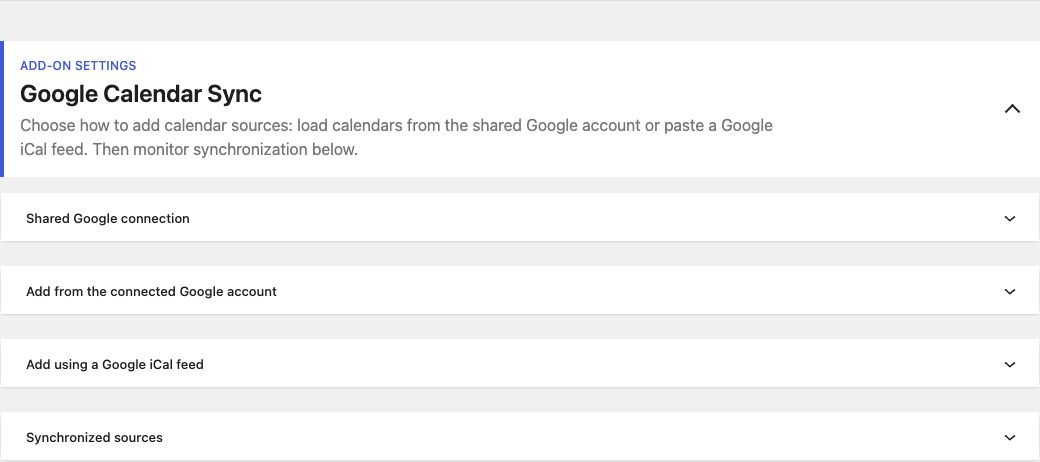 Options > Add-on Settings > Google Calendar Sync. Choose your source method, then monitor Synchronized sources. Connection details and source URLs are deliberately not shown. Click to enlarge.
Import events from Google Calendar into CalendarWP and keep supported fields synchronized in one direction, from Google to WordPress.
Connect and import
- Install core and activate CalendarWP - Google Calendar Sync.
- Open CalendarWP > Options > Integrations > Google Calendar and choose Connect Google Calendar.
- Authorize an account that can read the desired calendar.
- Under Options > Add-on Settings > Google Calendar Sync, load the Google calendars, select one, choose its CalendarWP destination and first-sync status, then click Add source.
- Keep the first import as Draft. Open Synchronized sources and choose Sync now to import immediately, or wait for automatic synchronization. Inspect dates, recurrence, descriptions and locations before choosing Published for the source.
The shared Google connection belongs to the site. Administrators manage credentials; ordinary event-editing permission does not authorize changing the provider account. Scheduler can separately use the shared connection for its enabled booking features.
After Add source, a persistent message confirms success or explains the failure. Adding an already configured calendar leaves its existing settings unchanged and directs you to Synchronized sources. Use the existing source rather than adding it again. Saving a source does not mean its events have finished importing.
iCal alternative
If OAuth is unavailable, use a public or secret Google-hosted HTTPS .ics address. A secret address is a credential: do not paste it into public pages, screenshots or support messages. CalendarWP encrypts it and does not show it again. This alternative is read-only and does not provide Workspace-wide calendar discovery.
What synchronization changes
Google controls synchronized titles, descriptions, locations, dates/times, recurrence and cancellations. Edit these fields in Google. Private/confidential events and attendee data, organizer email addresses, attachments, reminders and conference details are excluded from import.
Automatic runs use WordPress Cron and back off after temporary failures or rate limits. A successful provider connection does not prove an import completed; inspect source status and imported events.
Pause, reconnect, remap or detach
- Pause keeps managed events but stops normal synchronization for the source.
- If authorization fails, open Options > Integrations > Google Calendar and use Reconnect Google. This reuses saved credentials and starts Google authorization without disconnecting first. Sign in with the same account to retain access to existing sources, then load the calendar list again. Reconnect is available when OAuth is enabled for the site. iCal sources do not depend on OAuth.
- Remap changes the destination calendar/status for managed posts. Review the intended effect before confirming.
- Detach forgets the source credential and synchronization mapping while preserving imported posts as ordinary editable events. Future Google changes will no longer update them through that detached source.
Back up before bulk source changes. If a source stalls, inspect its error and WordPress Cron before repeatedly creating duplicate sources. Do not assume Google Feed import also supplies outbound booking synchronization; that is a separate Scheduler feature.
Applies to Google Calendar Sync 1.0.39.
An event import is incomplete
A saved source or a queued synchronization is not confirmation that its events were imported. Check Synchronized sources for the last completed result and any error.
Google Calendar Sync 1.0.24 corrects an import verification issue with venue names containing characters such as & and >. WordPress stores these names using HTML entities; synchronization now checks that stored representation while preserving the original address.
After updating, choose Sync now on the existing source. Keep the source attached: a retry reuses its saved event identity rather than starting another import. Reconnecting Google addresses authorization errors; it does not repair an event-save failure. If the incomplete-import error persists, retain the source and report the error and installed versions to support. Avoid sharing private event details or credentials.
Read synchronization progress
A queued synchronization confirms that work was requested, not that the import finished. While this settings page is visible, the source card refreshes its status, linked-event count and last recorded activity. The counter reports the total linked events; it is not a percentage or the number processed in the current run. Status checks only read progress and do not start another synchronization.
A blue syncing label indicates the recorded running state. If activity stops updating, check the displayed status and WordPress Cron. Completion requires a Last success timestamp and a completed Last result. An error means the complete run has not succeeded, even if some events have already imported.
Unsupported time zone
Version 1.0.28 accepts supported legacy IANA aliases, such as US/Eastern and Asia/Calcutta, and valid explicit UTC offsets. Unknown or invalid values still stop the import rather than guessing an event's time zone. If an event omits its time zone, the importer uses the source calendar's zone, then the site's configured zone when necessary.
After installing the update, choose Sync now on the existing source. Keep its linked events and source in place. Apply remapping changes destination/status and does not fix time-zone validation. Reconnecting Google also does not correct a time-zone value. If the error persists, retain the source and contact support with the displayed message; do not delete or change Google events merely to retry.
Hidden events and deletion
Deleting a Google-managed event hides it from CalendarWP while preserving the synchronization identity so it will not be imported again. Protected linked events cannot be permanently deleted through Trash; the message explains how to restore them under Synchronized sources → Hidden events. Detaching a source stops synchronization for all its events and makes its retained posts ordinary editable events. Do not detach merely to resolve an import error.
Recurrence time zones
Timed recurrence additions and exclusions are converted into the event time zone. Date-only recurrence values retain their calendar date at midnight. Date-times without an explicit UTC offset use the supplied time zone. Invalid recurrence zones or dates stop synchronization without marking the run complete; correct the source data only after identifying the specific invalid value.
Import range
New Google account and iCal sources default to Upcoming events only: events still in progress, future events, and recurring series with future occurrences. An imported recurring series retains its original start and past occurrences. Expired standalone events and finished series are skipped.
Choose From a starting date to include events ending after midnight on that date in the WordPress site time zone, or All history to include all eligible dates returned by Google. Private and confidential event exclusions still apply.
Existing sources retain Previous behavior (past year and recurring series) after upgrading. Under Synchronized sources, choose an Import range and select Save import range, then Sync now. Changing the range preserves existing imported events and hidden choices; events outside the new range are left unchanged. It does not clean up previous imports. Google deletions and privacy exclusions continue to be respected.
The range controls which events are imported; Google responses and iCal feeds may still include older entries during scanning.